Invoice
How to Send an Invoice by Email With a Professional Email Template
You have finished the work, created the invoice, and now there is one small step left: sending it to your client.
A good invoice email does not need to be long. The client should quickly understand what the invoice is for, how much they owe, when payment is due, and where to find the invoice.
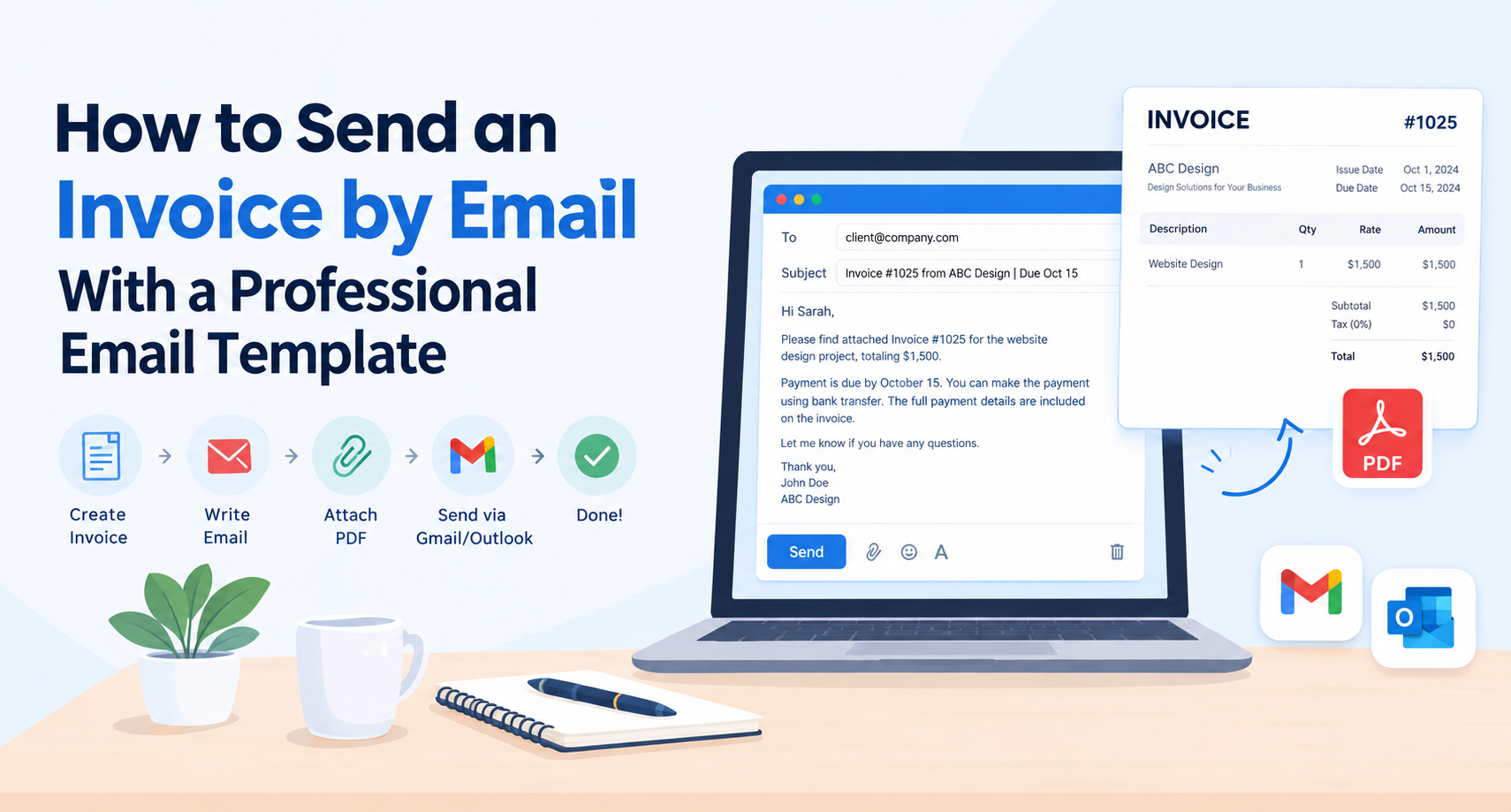
The process is simple. Check the invoice, save it as a PDF, write a clear subject line, add a short message, attach the file, and review everything before clicking send.
Here is how to send an invoice by email without making the process harder than it needs to be.
Check your invoice before you send it
Before opening Gmail, Outlook, or another email service, check the invoice itself.
Small errors can create unnecessary back-and-forth. A wrong invoice number or missing payment detail can also slow down payment processing.
Check these details first:
- Your business name and contact information
- The client's correct name and billing information
- Invoice number and invoice date
- Description of the products or services
- Quantity, rates, taxes, and total amount
- Payment methods and payment instructions
- Payment due date and payment terms
If you are unsure what an invoice should include, review our guide to the 10 essential elements of a professional invoice.
Once everything looks correct, save the final version as a PDF.
Save the invoice as a PDF
PDF is usually the simplest format for sending an invoice by email.
It keeps the layout consistent across different devices and makes the invoice easy for the client to download, print, or save for their records.
Avoid sending an editable Word or spreadsheet file unless your client specifically asks for one.
Give the file a useful name before attaching it. For example:
Invoice-1025-ABC-Design.pdf
A clear filename helps the recipient identify the document without opening it. It also makes the invoice easier to find later.
If you still need to create your invoice, you can follow our complete guide to creating an invoice for a small business.
Before attaching it, open the PDF once. Check that the pages look correct and that no information has been cut off.
Write a clear invoice email subject line
The subject line should tell the client exactly why you are emailing.
A vague subject such as "Invoice" gives very little information. A specific subject makes the email easier to identify and find later.
You can use a simple format like:
Invoice #1025 from ABC Design | Due October 15
Other options include:
- Invoice #1025 for Website Design
- ABC Design Invoice #1025 | Due October 15
- Invoice #1025 | Website Design Project | $1,500
- September Services Invoice #1025
Including the invoice number is especially useful because the client can search for it later.
If you want a consistent system for your invoice numbers, you can also read our guide on simple invoice numbering systems and best practices.
Keep the email short and useful
You do not need to copy the entire invoice into the email.
The message should provide enough context for the client to understand what you are sending. Include the invoice number, amount, due date, and payment information when appropriate.
A simple structure works well:
- Greet the client by name.
- Explain what the invoice covers.
- Mention the invoice number and amount.
- State the payment due date.
- Tell them the invoice is attached.
- Explain how to pay if the payment instructions are not already clear.
- Close politely.
For example:
Hi [Client Name],
Please find attached Invoice #1025 for the website design project, totaling $1,500.
Payment is due by October 15. Payment details are included on the invoice.
Please let me know if you have any questions.
Thank you,
[Your Name]
That is enough for most routine invoices.
The email is there to introduce the invoice. The invoice itself contains the detailed breakdown.
Attach the invoice and check it one more time
Now attach the final PDF to the email.
This sounds obvious, but forgetting the attachment is one of the easiest mistakes to make when sending an invoice.
Before sending, check:
- The correct client is in the To field.
- The invoice PDF is attached.
- The invoice number matches the subject line.
- The amount in the email matches the invoice.
- The due date is correct.
- The payment instructions are accurate.
- The attachment opens properly.
If the client has a specific accounts-payable email address or billing portal, use the process they provided. Some businesses require invoices to go to a particular department rather than an individual contact.
For larger clients, you may also need a purchase order number, project code, or other reference. Check their billing instructions before sending.
If you want to understand the basics of invoicing before creating one, our guide explains what an invoice is, the main types, and how invoicing works.
Use this invoice email template
If you regularly send invoices, you do not need to write a new email from scratch every time.
Use this template and replace the details:
Subject: Invoice #[Invoice Number] from [Business Name] | Due [Due Date]
Hi [Client Name],
Please find attached Invoice #[Invoice Number] for [brief description of work or services], totaling [Amount].
Payment is due by [Due Date]. You can make the payment using [Payment Method]. The full payment details are included on the invoice.
Please let me know if you have any questions about the invoice.
Thank you,
[Your Name]
[Business Name]
[Phone Number]
The message is short, but it answers the questions a client is most likely to have.
A friendlier version for regular clients
Subject: Invoice #[Invoice Number] | [Month or Project]
Hi [Client Name],
Hope you’re doing well.
I’ve attached Invoice #[Invoice Number] for [service or project] for [Amount]. The payment is due by [Due Date].
You’ll find the payment details on the invoice. Please let me know if you have any questions.
Thanks again,
[Your Name]
Choose the version that matches your relationship with the client. A long-term client may prefer a more conversational email, while a new business relationship may call for a more formal message.
How to send an invoice through Gmail or Outlook
The basic process is almost the same whether you use Gmail, Outlook, or another email service.
Step 1
Open a new email and enter the client's correct email address.
Step 2
Add a specific subject line containing the invoice number and other useful information.
Step 3
Write your short invoice message.
Step 4
Click the attachment option and select the final invoice PDF.
Step 5
Open or preview the attachment if your email service allows it.
Step 6
Check the recipient, subject, amount, due date, and attachment.
Step 7
Send the email.
If you create invoices regularly, having a consistent process can save time. You can make an invoice online for free and then use the same email workflow each time.
What payment terms should you mention?
Your invoice should clearly state when payment is due.
Common terms include:
- Due on receipt: Payment is expected when the client receives the invoice.
- Net 15: Payment is due within 15 days.
- Net 30: Payment is due within 30 days.
The important thing is consistency. If the invoice says payment is due October 15, your email should not mention October 20.
For a deeper explanation, read our guide to invoice payment terms, including Net 15, Net 30, and Due on Receipt.
For larger or recurring clients, agree on payment terms before the work begins. That makes the invoice less likely to create confusion later.
What should you do after sending the invoice?
Keep a copy of the sent email and the exact invoice you sent.
Then track the due date.
If payment arrives, record it against the invoice. If the due date passes without payment, send a polite reminder rather than assuming the client is ignoring you.
It also helps to understand the difference between an invoice and a payment record. Our guide on invoice vs. receipt explains when each document is used.
For recurring work, you can also create a standard invoice email template and reuse it each month. Just remember to update the invoice number, amount, service period, and due date before sending.
Avoid these common invoice email mistakes
A professional invoice email does not require complicated wording. Most problems come from simple mistakes.
Forgetting the attachment
You write "I have attached the invoice" and then send the email without attaching anything. Always check the attachment before sending.
Using a vague subject line
"Invoice" does not tell the client which invoice you mean. Include the invoice number and, when useful, the project or due date.
Sending the wrong invoice
Check the client's name, invoice number, amount, and billing period before sending.
Leaving out the due date
The client should not have to open the PDF just to figure out when payment is expected.
Using an unclear filename
Invoice.pdf is harder to identify than ABC-Design-Invoice-1025.pdf.
Writing too much
The client does not need a full explanation of the project in the email. Keep the message focused on the invoice and payment.
Using different payment information
If your email contains payment details, make sure they match the information on the invoice.
Frequently asked questions about sending invoices by email
Can I send an invoice by email?
Yes. Email is a common way to deliver invoices. Attach the final invoice, preferably as a PDF, and include the invoice number, amount, due date, and payment information in a short message.
What should I write when sending an invoice?
Keep it simple. Tell the client what the invoice covers, provide the invoice number and amount, mention the due date, and explain where to find payment instructions.
Should I send an invoice as a PDF?
PDF is usually a practical choice because it preserves the invoice layout and gives the client a fixed document to save or print.
What should the invoice email subject line say?
Use a specific subject such as Invoice #1025 from ABC Design | Due October 15. The invoice number makes the message easier to identify later.
How do I attach an invoice to an email?
Create or download the final invoice as a PDF, start a new email, add the client's address, write your message, select the PDF using the attachment option, and check the file before sending.
Can I send an invoice through Gmail?
Yes. You can create a normal Gmail message, add your invoice PDF as an attachment, write your invoice email, check the details, and send it.
Should I include payment terms in the email?
Yes, especially when the payment deadline is important. At minimum, mention the due date. If needed, also mention the accepted payment method or where the full payment instructions are located.
Final checklist before you click send
Before sending an invoice by email, take a few seconds to check the essentials:
- Correct client email address
- Correct invoice number
- Correct amount
- Correct due date
- Clear subject line
- Short and professional email
- Final PDF attached
- Correct payment instructions
- Any required purchase order or client reference included
Once these details are checked, you can send the invoice with confidence.
A professional invoice email does not need to be complicated. Create a correct invoice, attach the PDF, explain the key details, and make the next payment step clear. That simple process works for freelancers, small businesses, agencies, and service providers alike.
Ready to send your next invoice?
Free, no sign-up, print-ready PDF in under a minute.