Invoice
How to Organize Invoices: Simple Filing System for Small Business
How to Organize Invoices: Simple Filing System for Small Business
Keeping invoices organized sounds easy when you have only a few customers. But as your business grows, invoices can end up scattered across email attachments, computer folders, cloud storage, spreadsheets, and paper files.
A simple filing system helps you find invoices quickly, avoid duplicate records, and keep important business documents in order.
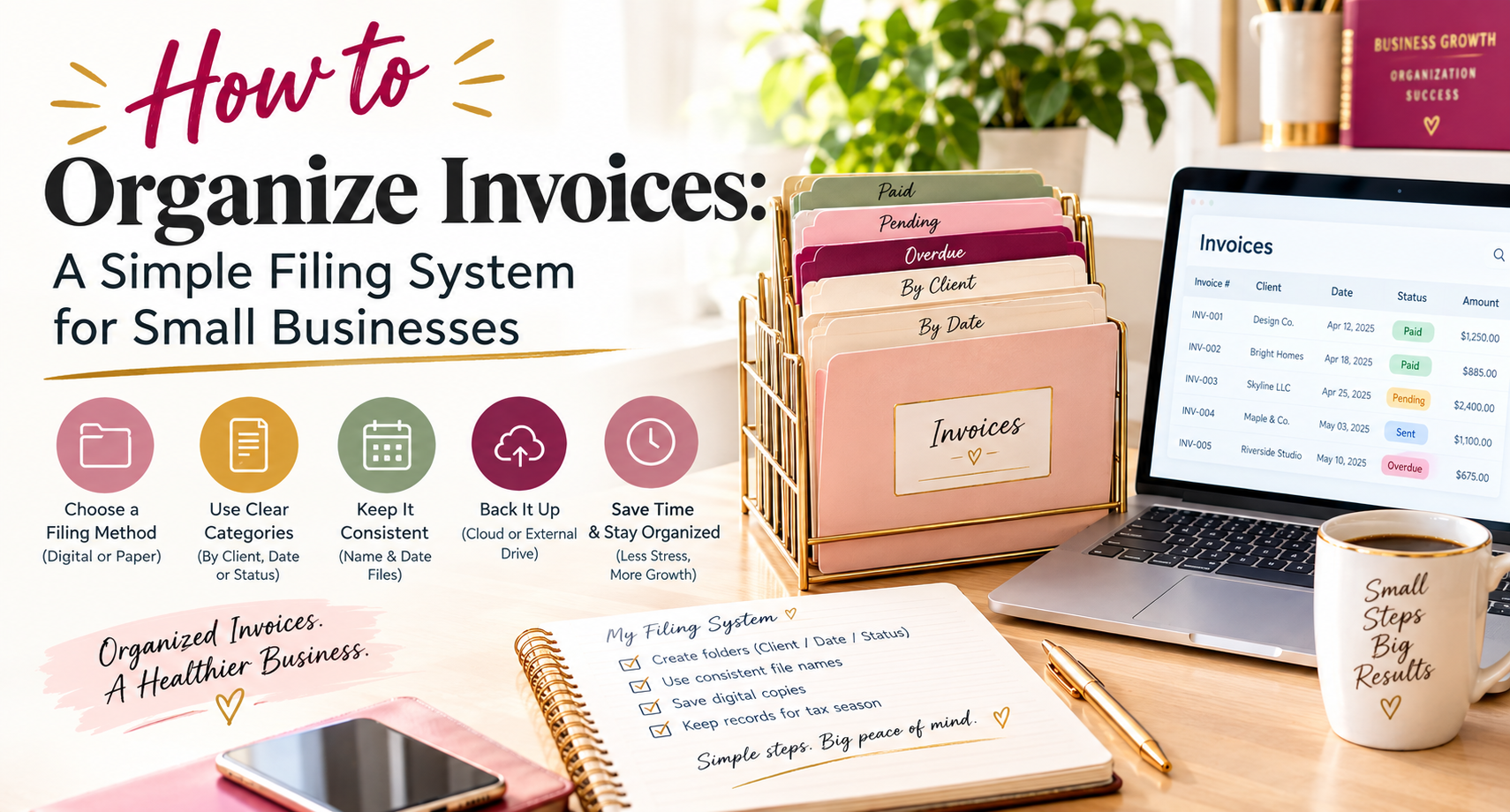
The easiest way to organize invoices is to use a consistent folder structure, a standard file-naming convention, and a central invoice register. Your folders store the documents, while your register helps you find each invoice and see its current status.
In this guide, you will learn how to organize invoices in Google Drive, Excel, and paper folders, compare different filing methods, and create a system you can use as your business grows.
How Should a Small Business Organize Invoices?
For most small businesses, a year-based folder structure combined with a spreadsheet register is a practical starting point.
Use this simple process:
-
Create a main folder for business invoices.
-
Create a separate folder for each year.
-
Save each invoice using a consistent file name.
-
Record the invoice in a central register.
-
Update its payment status when you receive payment.
-
Review your records regularly and back them up.
For example, your digital filing system could look like this:
Copyable invoice folder structure
Copy this structure and adapt it to your business.
Business Records/
└── Invoices/
    ├── 2026/
    │   ├── Sales Invoices/
    │   │   ├── Issued/
    │   │   ├── Paid/
    │   │   ├── Unpaid/
    │   │   └── Cancelled-Credited/
    │   ├── Supplier Invoices/
    │   └── Supporting Documents/
    ├── 2027/
    │   ├── Sales Invoices/
    │   │   ├── Issued/
    │   │   ├── Paid/
    │   │   ├── Unpaid/
    │   │   └── Cancelled-Credited/
    │   ├── Supplier Invoices/
    │   └── Supporting Documents/
    └── Invoice Register.xlsx
Important: Use folders to store and retrieve documents, not as your only payment-tracking system. An invoice may be partially paid, disputed, or overdue, so a register is better for recording its exact financial status.
If you create invoices regularly, first establish a consistent numbering system. Our guide to how to number invoices explains how to assign unique invoice numbers.
How to Name Invoice Files
A good file name tells you who the invoice belongs to, which invoice it is, and when it was issued.
Avoid generic names such as:
-
Invoice.pdf
-
Invoice-Final.pdf
-
New-Invoice-2.pdf
Instead, use a consistent format:
Customer-Name-Invoice-Number-Invoice-Date.pdf
For example:
ABC-Design-INV-2026-015-2026-10-03.pdf
This file name identifies the customer, invoice number, and issue date without requiring you to open the document.
Follow these rules:
-
Use the same format for every invoice.
-
Use a unique invoice number for each invoice.
-
Use a consistent date format, such as YYYY-MM-DD.
-
Avoid special characters that may cause problems with file names.
-
Keep the original invoice number visible in the document.
-
Clearly identify corrected or revised documents without silently overwriting important records.
If you need help creating the document itself, see How to Create an Invoice: A Complete Guide for Small Businesses.
Should You Organize Invoices by Customer, Year, or Project?
There is no single structure that suits every business. Choose a system based on how you normally search for invoices.
| Filing method | Example | Best for |
|---|---|---|
| By year | Invoices → 2026 → INV-2026-015.pdf | Most small businesses |
| By customer | Invoices → ABC Design → 2026 | Businesses with repeat customers |
| By project | Invoices → Website Redesign → 2026 | Agencies, consultants, and contractors |
| By supplier | Supplier Invoices → ABC Supplies → 2026 | Businesses managing purchase invoices |
Organizing by year
This is a good default for many small businesses. It keeps annual records together and makes it easier to prepare documents for accounting or tax purposes.
Organizing by customer
This works well if you regularly invoice the same customers and frequently need to retrieve their previous invoices.
Organizing by project
This is useful when one customer has multiple projects and you need to keep the related invoices and supporting documents together.
Which method should you choose?
Start with year-based folders if you are unsure. Include the customer name and invoice number in every file name so you can still find invoices by customer or invoice number.
Avoid maintaining several separate copies of the same invoice in different folders. If you need project-level views, use a register with customer and project columns rather than duplicating files.
How to Organize Invoices in Google Drive
Google Drive can be a convenient option for businesses that need to access invoices from different devices or share records with an accountant.
Follow these steps:
-
Create a main folder named Business Records.
-
Inside it, create an Invoices folder.
-
Create a folder for each financial or calendar year, depending on your record-keeping process.
-
Add subfolders for sales invoices, supplier invoices, and supporting documents.
-
Use a consistent file-naming convention.
-
Create a Google Sheets invoice register in the main Invoices folder.
-
Restrict access to people who need the records and use suitable backup and security practices.
Example:
Business Records/
└── Invoices/
    ├── 2026/
    │   ├── Sales Invoices/
    │   ├── Supplier Invoices/
    │   └── Supporting Documents/
    └── Invoice Register
For the register, record the invoice number, customer, amount, due date, balance, status, and payment date.
Tip: Use Drive search to locate invoices by their file names or invoice numbers. You do not need to create a separate folder for every possible category if a searchable file name and register will do the job.
How to Organize Invoices in Excel or Google Sheets
A spreadsheet provides a central index of your invoices. It lets you search records, filter by customer, review due dates, and identify outstanding balances.
Create a workbook named Invoice Register.xlsx, or use Google Sheets if your records are stored in Google Drive.
Include these columns:
-
Invoice number
-
Customer name
-
Invoice date
-
Due date
-
Invoice amount
-
Amount paid
-
Balance due
-
Payment status
-
Payment date
-
File location or invoice link
Copyable sample invoice register
You can copy this table into Excel or Google Sheets and replace the sample data with your own.
| Invoice Number | Customer | Invoice Date | Due Date | Invoice Amount | Amount Paid | Balance Due | Status | Payment Date |
|---|---|---|---|---|---|---|---|---|
| INV-2026-001 | ABC Design | 2026-10-01 | 2026-10-15 | $500.00 | $500.00 | $0.00 | Paid | 2026-10-12 |
| INV-2026-002 | XYZ Studio | 2026-10-03 | 2026-11-02 | $750.00 | $0.00 | $750.00 | Unpaid | — |
| INV-2026-003 | Smith Consulting | 2026-09-01 | 2026-09-30 | $1,200.00 | $400.00 | $800.00 | Partially Paid | — |
| INV-2026-004 | Bright Office | 2026-09-10 | 2026-09-25 | $600.00 | $0.00 | $600.00 | Overdue | — |
These are illustrative examples. The dates, amounts, and statuses should be replaced with your actual records.
How to maintain the register
-
Add each invoice when you issue or receive it.
-
Record its invoice date and agreed due date.
-
Enter payments when they arrive.
-
Update the balance due after each payment.
-
Record the payment date when the invoice is fully paid.
-
Review outstanding invoices regularly.
-
Link each row to the corresponding stored document if possible.
For a simple register, the balance calculation is:
Balance due = Invoice amount − Amount paid
For example, if an invoice is $1,200 and the customer has paid $400, the remaining balance is $800.
Use consistent status labels such as Unpaid, Partially Paid, Paid, Overdue, and Disputed. An invoice should be marked overdue only when its due date has passed and an amount remains outstanding.
For a more detailed process covering due dates, payment records, and follow-ups, read How to Track Invoices and Payments: A Simple System for Small Businesses.
Organizing Invoices vs. Tracking Payments
These tasks are connected, but they are not the same.
| Invoice organization | Invoice tracking |
|---|---|
| Focuses on where documents are stored | Focuses on payment status and outstanding balances |
| Uses folders, file names, and document links | Uses a register, spreadsheet, or invoicing software |
| Helps you find an invoice quickly | Helps you identify what is due or overdue |
| Keeps records grouped by year, customer, or project | Records payments, balances, due dates, and follow-ups |
| Answers: “Where is the invoice?” | Answers: “Has the customer paid?” |
For example, you may have saved an invoice correctly in the 2026 folder, but the customer may still owe $800. Your folder structure helps you locate the invoice; your register tells you how much remains unpaid.
For that reason, use both systems together. Keep the invoice document in one consistent location and update its payment status in the central register.
Read How to Track Invoices and Payments for the payment-monitoring workflow, including recording payments and following up on overdue invoices.
How to Organize Paper Invoices
If you still use paper invoices, a filing cabinet or labeled folders can keep your records manageable.
A simple paper filing structure could be:
Business Invoices
├── 2026
│   ├── Paid
│   ├── Unpaid
│   ├── Overdue
│   └── Supplier Invoices
└── 2027
    ├── Paid
    ├── Unpaid
    ├── Overdue
    └── Supplier Invoices
To keep the system consistent:
-
Write or label the invoice number clearly.
-
File each document in the correct year and category.
-
Keep related payment confirmations with the relevant records, where appropriate.
-
Update your invoice register when payment arrives.
-
Scan important documents if you need digital access or backup.
-
Store physical records securely and retain them for the period required by applicable rules.
If you organize invoices by customer instead, use clearly labeled customer folders and keep the year and invoice number visible on each document.
Scanning paper invoices can make them easier to retrieve, but check your local accounting and tax requirements before disposing of original documents.
How to Organize Invoices and Related Emails
Do not rely on your email inbox as the only place where invoices are stored.
Create an email folder or label called Invoices. If useful, add labels such as Sent, Received, and Payment Confirmations.
Save the actual invoice documents in your main filing system, too. This makes it easier to find the invoice even if an email gets buried in your inbox.
Use a clear email subject line, such as:
Invoice INV-2026-015 | ABC Design | Due 2026-10-30
For practical email instructions and a ready-to-use message, see How to Send an Invoice by Email.
How Payment Terms Help You Organize Invoices
Your filing system becomes more useful when every invoice has a clear due date.
For example:
-
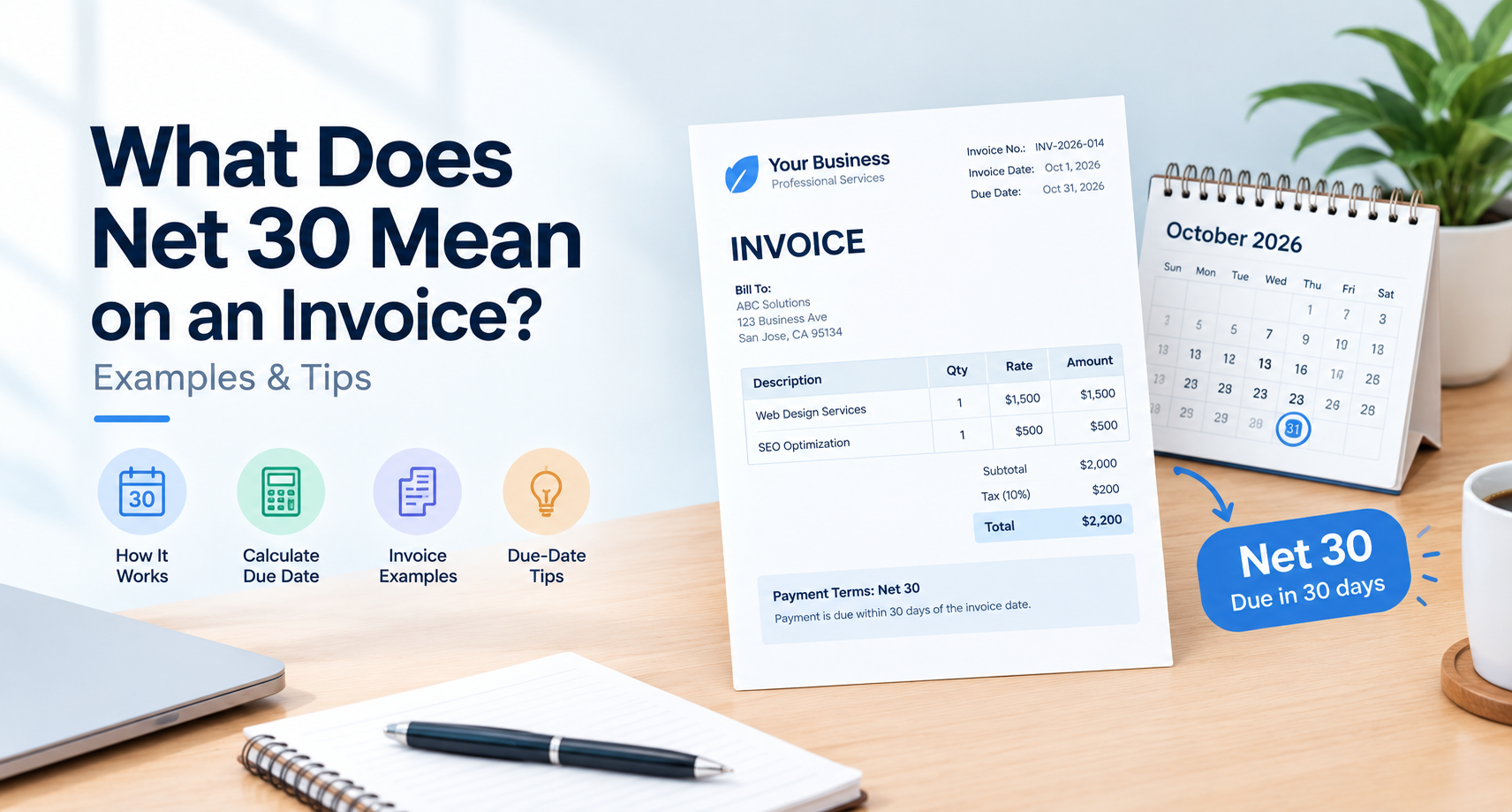
Invoice date: October 1, 2026
-
Payment terms: Net 30
-
Due date: October 31, 2026
Record the agreed due date in your invoice register. If the customer has not paid the full amount by that date, update the status according to your process.
Payment terms can vary by agreement and applicable law, so do not assume every invoice is due within 30 days.
For more details, read Invoice Payment Terms Explained: Net 15, Net 30, Due on Receipt, and More.
What to Do With Unpaid and Overdue Invoices
Keep the original invoice in your filing system even when payment is late. Update its status in the register rather than relying only on moving files between folders.
Review the register to identify:
-
Invoices due soon
-
Unpaid invoices whose due dates have passed
-
Partially paid invoices
-
Disputed invoices
-
Invoices that have been paid in full
When an invoice becomes overdue, record the follow-up and any customer response according to your normal process.
If you need help writing a professional reminder, see How to Follow Up on an Unpaid Invoice Without Losing the Customer.
For guidance on preventing recurring payment delays, you can also read How to Handle Late Payments: A Small Business Guide to Getting Paid on Time.
How to Organize Invoices for Accounting and Tax Records
Keep invoices together with other relevant business records, such as payment confirmations, supplier documents, credit notes, and supporting receipts.
A year-based filing system makes it easier to retrieve documents when preparing financial records or responding to an accountant's request.
Do not delete paid invoices simply because the payment is complete. Check the record-retention requirements that apply to your business before deleting old files.
If you need to understand the difference between an invoice and proof of payment, read Invoice vs. Receipt.
A Simple Invoice Organization Routine
You do not need to spend hours managing your files. A short, consistent routine is usually easier to maintain.
Whenever you create or receive an invoice:
-
Check that the invoice details are correct.
-
Save the document using your standard file name.
-
Put it in the correct folder.
-
Add or update the invoice register.
-
Record the due date and amount.
Once a week:
-
Check that recent invoices have been filed.
-
Update payment dates and balances.
-
Review invoices that are due soon or overdue.
-
Follow up where necessary.
-
Back up important records and resolve any duplicate or missing files.
Before creating a new invoice, you can use the free online invoice generator to prepare a document, then save it using your chosen naming convention.
If you are new to invoicing, start with What Is an Invoice? Types, Examples, and How Invoicing Works and What Should an Invoice Include? 10 Essential Elements of a Professional Invoice.
You can also learn how to create an invoice from scratch in our complete invoice creation guide.
Frequently Asked Questions About Organizing Invoices
How should a small business organize invoices?
Create a main invoice folder, separate records by year, use consistent file names, and maintain a central register. Record the invoice number, customer, due date, balance, status, and payment date.
Is it better to organize invoices by customer or by year?
Year-based folders are a practical starting point for many small businesses. Customer-based folders are useful when you work with a smaller group of repeat customers. You can also organize by project if that matches how your business operates.
How do I organize invoices in Google Drive?
Create an Invoices folder, add yearly subfolders, and use consistent file names. Store a Google Sheets invoice register alongside the folders so you can search and review invoice details quickly.
Can I use Excel to organize invoices?
Yes. Excel can serve as a central invoice register. Include invoice number, customer, invoice date, due date, invoice amount, amount paid, balance due, status, and payment date.
What is the best way to name invoice files?
A useful format is Customer-Name-Invoice-Number-Invoice-Date.pdf. For example, ABC-Design-INV-2026-015-2026-10-03.pdf. Use the same convention for every invoice.
Should I keep paid and unpaid invoices in separate folders?
You can, but it is not essential. Separate folders may help you find documents, while a central register provides a clearer view of payment status. If you use folders for status, keep them consistent with your register.
What is the difference between organizing and tracking invoices?
Organizing invoices means storing and naming documents so you can find them. Tracking invoices means monitoring due dates, payments, outstanding balances, and follow-ups. Most businesses benefit from doing both.
How often should I update my invoice register?
Update it whenever you create or receive an invoice and whenever a payment or status change occurs. Review the register weekly to catch missing records and overdue balances.
How long should I keep invoices?
The required retention period depends on the accounting, tax, and legal rules that apply to your business and location. Check the relevant requirements or ask your accountant before deleting old records.
Final Thoughts
A good invoice organization system does not need to be complicated. Start with a clear folder structure, descriptive file names, and a simple invoice register.
Use folders to store documents, and use your register to record due dates, balances, payment dates, and status. Whether you work in Google Drive, Excel, paper folders, or a combination of these, consistency is what makes the system useful.
When every invoice has a clear place and an up-to-date record, you can find documents faster, prepare for accounting more easily, and stay on top of outstanding payments.
Ready to send your next invoice?
Free, no sign-up, print-ready PDF in under a minute.